Barcoder for iPhone works on its own. Barcoder for Mac is optional.
Barcoder for iPhone
A fast scanner that works on its own
Everything here works on your iPhone alone — no account, no sign-in, no other device needed.
Scan one code after another. Each scan goes straight into the current list.
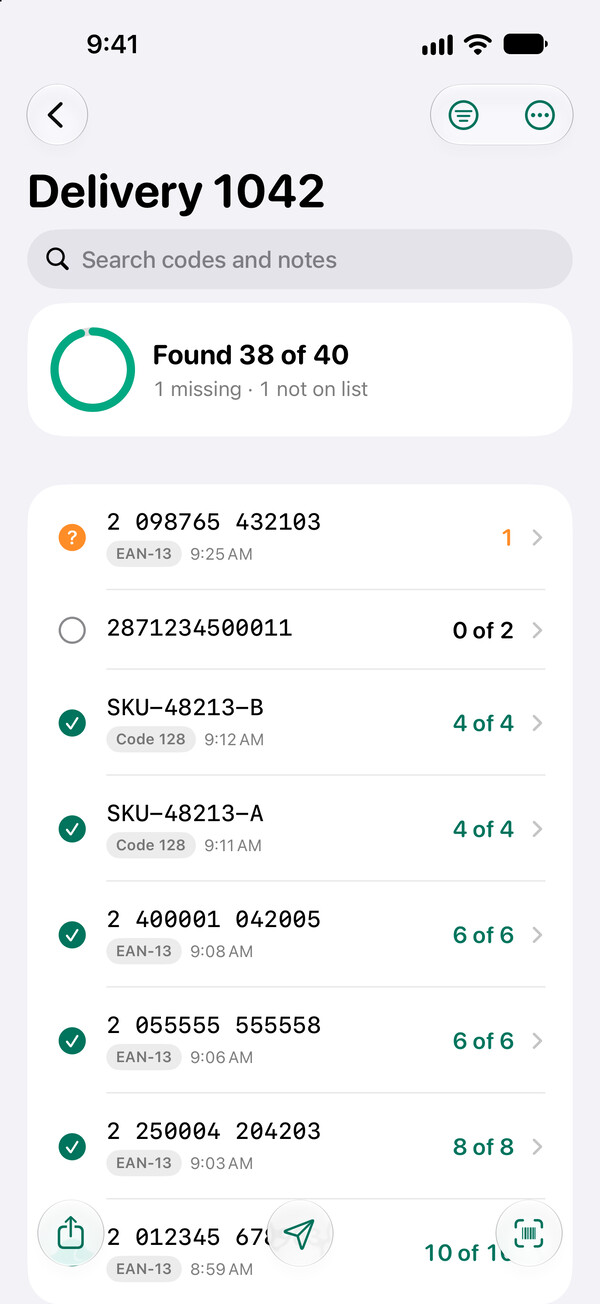
Check a delivery against its list and see what's found, missing or not on the list.
One code after another
Continuous scanning adds each code the moment it's seen. On crowded labels, switch to tap-to-capture or turn on the red aim line, which reads only the 1D barcode it crosses. Pick a frame size from small to full screen, and use zoom, the torch and tap to focus for small print.
Lists for every job
Log lists keep every scan as a row. Count lists add up repeated codes. Checklists show what's found, missing, over or not on the list — “Found 38 of 40”.
Catch mistakes as you scan
Accept only EAN/UPC codes with a correct check digit, numbers only or, with Barcoder Pro, your own pattern. Anything else is rejected with a clear reason and never reaches your list.
Export to CSV or TXT
Choose the columns, then share with AirDrop, Mail or Files, or copy all codes at once. CSV files open cleanly in spreadsheet apps.
From photos, or by hand
Pick codes out of a photo, or type a code yourself when a label is damaged.
Feedback you can trust
A crisp scanner beep, a haptic and a clear on-screen result for every scan, with VoiceOver announcements. Prefer it quieter? Choose the soft sound or turn down the volume.
Reads EAN-13, EAN-8, UPC-A, UPC-E, Code 128, Code 39, Code 93, ITF-14, Interleaved 2 of 5, Codabar, QR, Micro QR, Data Matrix, PDF417, MicroPDF417, Aztec and GS1 DataBar.
Code Lock — free
Lock onto the codes you need
A label often carries several barcodes. With a code lock on, Barcoder reads only codes that match the lock and ignores the rest, so you can scan in Continuous mode without aiming at each code.
Learn from a sample
In Settings › Code Lock, tap Learn from a Sample… and scan one code, or tap the padlock on the last scan's card. Barcoder learns that code's barcode type, characters and length.
Or set it by hand
Pick the barcode type, the characters (numbers only, or letters and numbers), a minimum and maximum length and a fixed start, and try a code in the Test field before you save.
Switch locks as you scan
The name of the lock that's on shows at the top of the scanner: tap it to choose another saved lock or turn the lock off. While a lock is on, Accept Only is paused.
Find lists — free
Find items on a list
Looking for the 50 boxes of one order in a full stock room? Enter or paste their codes once, then scan along the shelves: only codes on the list react, every other code is ignored, and Barcoder counts “Found 23 of 50”. Importing find lists from CSV or TXT files needs Barcoder Pro.
Paste the codes, with notes
One code per line, each with an optional note such as a model or size; two columns copied from a spreadsheet paste as they are. Or take the codes from another list, or from a file with Barcoder Pro.
Only listed codes react
A code on the list is found with a beep and a haptic, and the card shows its note and how many with the same note are found, such as “Same note: 3 of 4”. Other codes are ignored without a sound.
See what's still missing
Filter by Missing, group the codes by note, or tap Copy Missing to paste the rest into a spreadsheet with their notes. Export the list, or start over for the next round.
Barcoder for Mac — optional and free
Every scan, typed into your Mac
Pair once, and each scan is typed into the app you're using on your Mac — a spreadsheet, a web form or an order system — just as if you had typed it yourself. Typing up to 50 codes a day into one computer is free; Barcoder Pro (an in-app purchase) removes the limit.
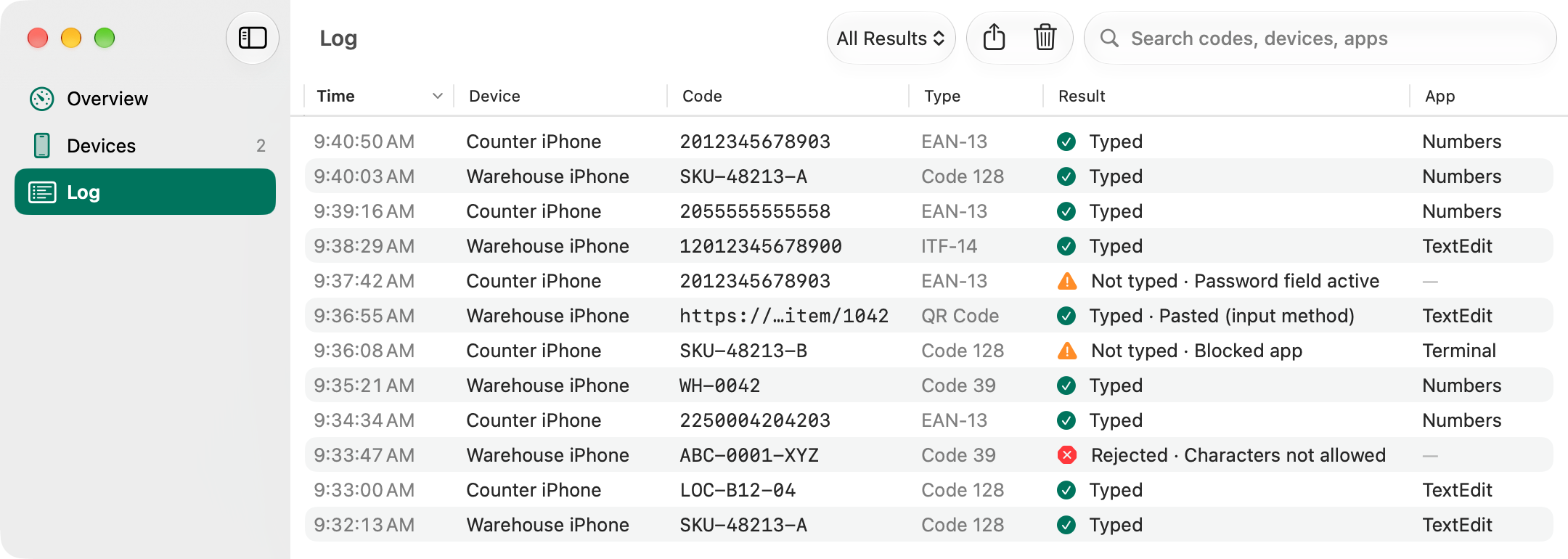
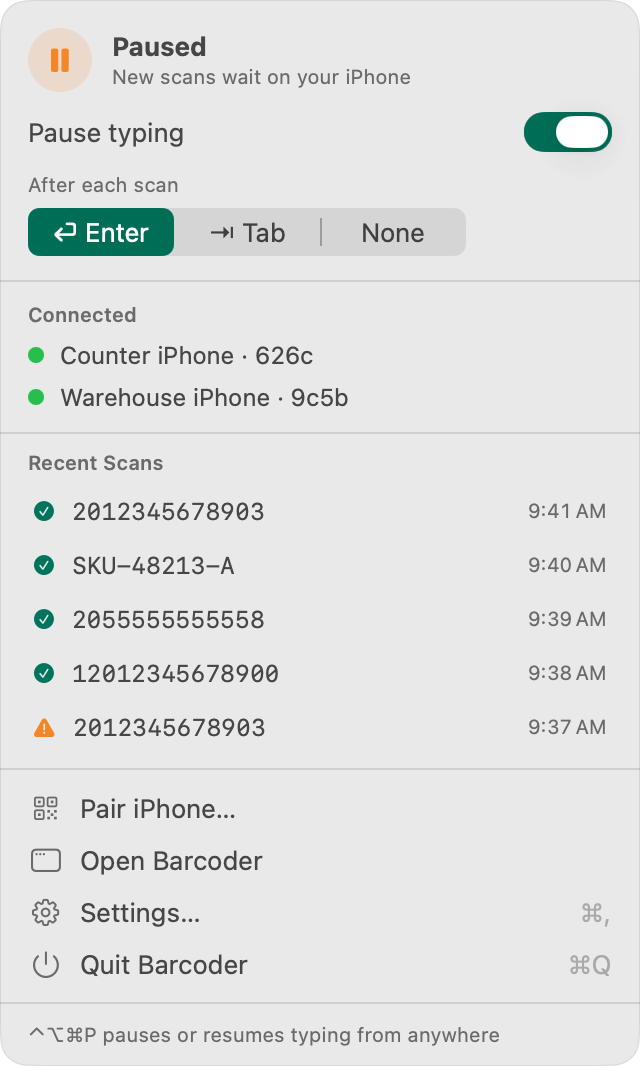
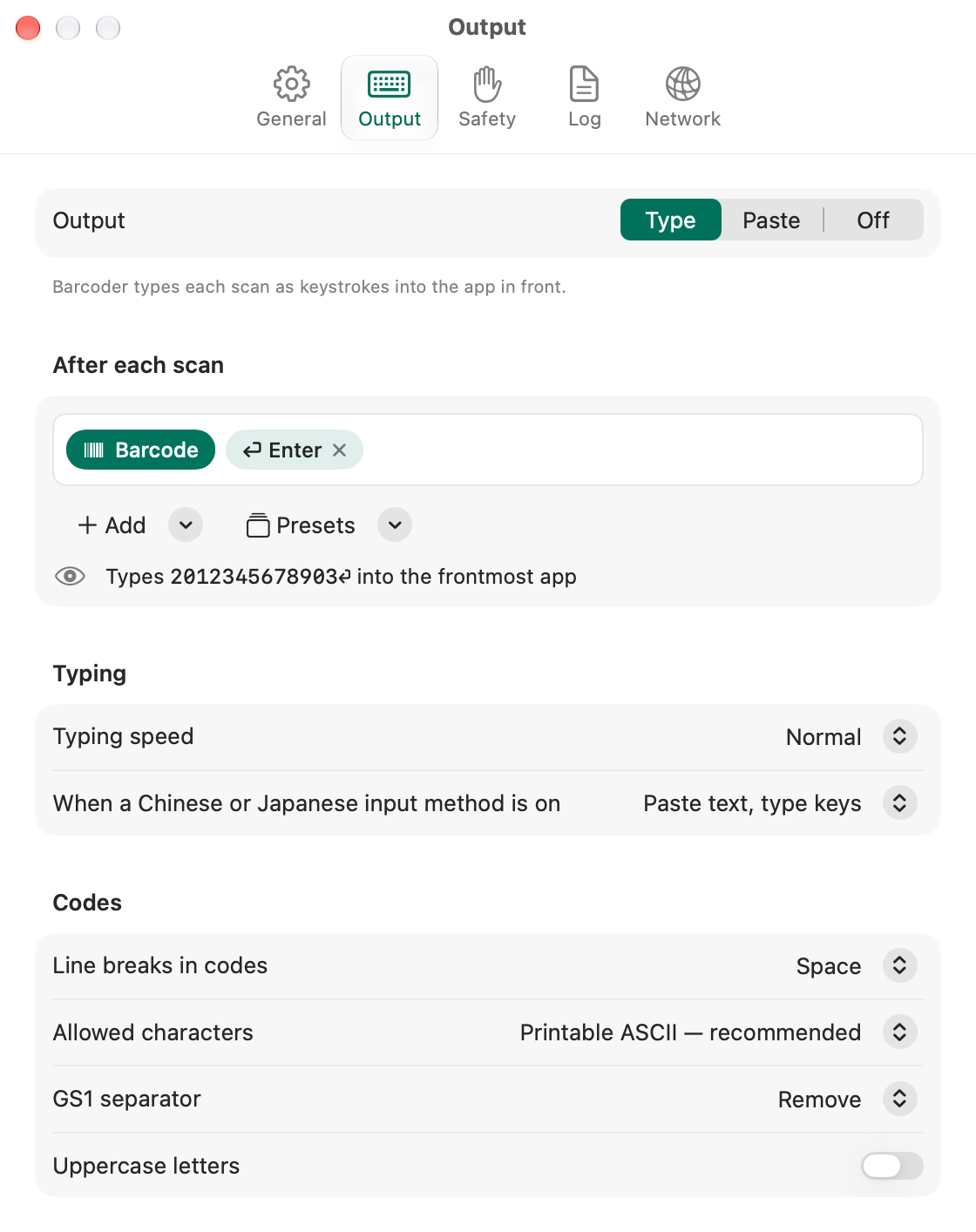
Log: every scan, with its result and the app it was typed into.From the menu bar: pause typing, or choose Enter or Tab after each scan.Output settings: build what's typed after each scan, with a live preview.
Types where you're working
Each scan goes into the app in front, followed by Enter, Tab or nothing. Or build your own template with quantity, date, time, list name and more.
Counts and checklists, too
When you've finished counting, send the whole list. With a template that includes Quantity, each code is typed with its quantity.
Safety rails built in
Nothing is typed while a password field is active (Secure Input), terminal apps are blocked by default, batches get a countdown you can cancel, and ⌃⌥⌘P pauses typing at once.
Chinese input methods
With 速成, 倉頡, Pinyin or another Chinese or Japanese input method on, Barcoder for Mac pastes the text instead of typing it.
Nothing gets lost
While your Mac is asleep or out of reach, scans wait on your iPhone. They go through when you reconnect — each one typed once.
Log and menu bar
Every scan is logged with its result and the app it went to, and saved to monthly CSV files (on by default; you can turn them off). Barcoder sits in the menu bar and can open when you log in.
How it works
Pairing takes a minute
You do this once for each iPhone.
Show a pairing code
Open Barcoder for Mac: its welcome steps show a QR code (later, click Pair iPhone). It works once and expires after 5 minutes.
Scan it with your iPhone
In Barcoder on your iPhone, open Computer and tap Scan Pairing Code.
Type the 6-digit code
Your iPhone shows a 6-digit code. Type it on your Mac and click Allow. From then on, the two find each other on the same network.
Privacy and security
Private and secure, in plain words
End-to-end encrypted
Scans travel only between your iPhone and your Mac, encrypted with keys that never leave the two devices.
Your local network only
No cloud, no servers and no account. Nothing is ever sent to us.
You approve every iPhone
A new iPhone can pair only after you type the code it shows into your Mac. Each pairing QR code works once.
You stay in control
Turn off or remove a paired iPhone at any time. A removed iPhone can't send scans until you pair it again; if it connects within 30 days, it's told it was removed.
Checks before every keystroke
Barcoder for Mac doesn't type while a password field is active (Secure Input), stops at once if you switch apps, and blocks terminal apps by default.
Discreet on the network
Barcoder for Mac announces itself under a random name such as “Barcoder-3fa2”, not the name of your Mac.
Signed with our Developer ID and notarized by Apple
14 languages: English, Traditional and Simplified Chinese, Japanese, Korean, German, French, Spanish, Italian, Portuguese (Brazil), Dutch, Polish, Thai and Vietnamese
Open the disk image and drag Barcoder to Applications. To send scans, your iPhone and your Mac need to be on the same Wi-Fi network — or connect your Mac to the Personal Hotspot on your iPhone.
 Barcoder